

E-commerce Admin Panel
Manage your E-commerce platform's backend with ease using our intuitive admin panel. From product management to order tracking, our admin panel provides all the tools you need to run your online store efficiently.
Categories
In the categories section, you can create and manage product categories to organize your products effectively. This includes adding new categories, editing existing ones, and deleting categories that are no longer needed.
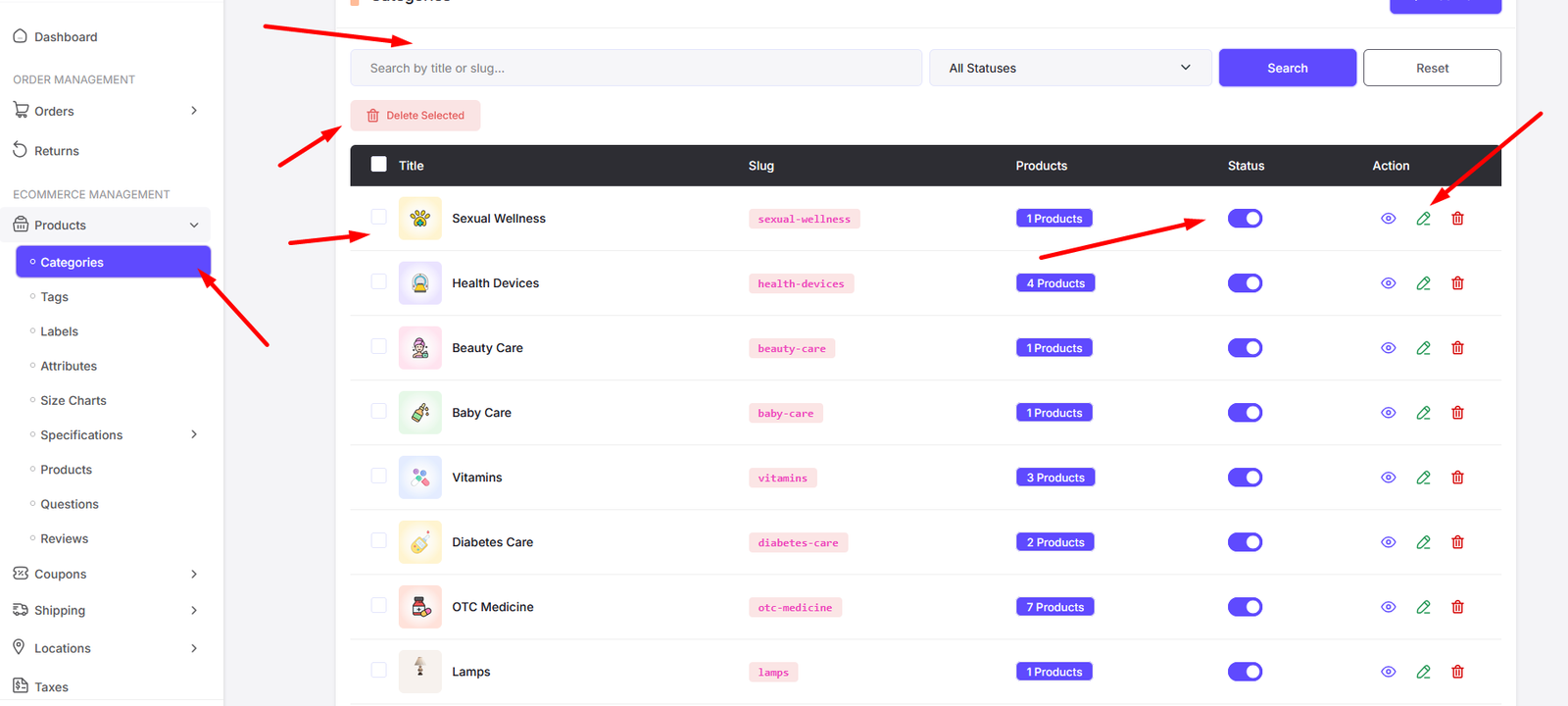
Here you can find all the categories. Click on "Add New" button to add a new category. Also click on the "Edit" button to edit an existing category. Click on the "Delete" button to delete a category. Also you can select multiple categories to delete at once. To view the products under a category, click on the "View" button.

Add new category page. You can add image, title, slug. Also you can set the parent category if you want to create a sub-category. Use status toggle to set the category as active or inactive. Inactive categories will not be visible on the frontend.
| Option | Description |
|---|---|
| Is Trending | Toggle this option to mark the category as trending. It will be shown in the search popup trending section |
| Show in Search | Toggle this option to show the category in the search popup |
| Show in Menu | Toggle this option to show the category in the Header Menu area |
| Show in Shop Breadcrumb | Toggle this option to show the category in the shop page Breadcrumb |
Tags
You can manage the tags of products from here.

Here you can find all the tags. Click on "Add New" button to add a new tag. Also click on the "Edit" button to edit an existing tag. Click on the "Delete" button to delete a tag. Also you can select multiple tags to delete at once.

Add new tag page

Edit tag page
Labels
You can manage the labels of products from here.

Here you can find all the labels. Click on "Add New" button to add a new label. Also click on the "Edit" button to edit an existing label. Click on the "Delete" button to delete a label. Also you can select multiple labels to delete at once.

Add new label page

Edit label page
Attributes
You can manage the attributes of products from here.
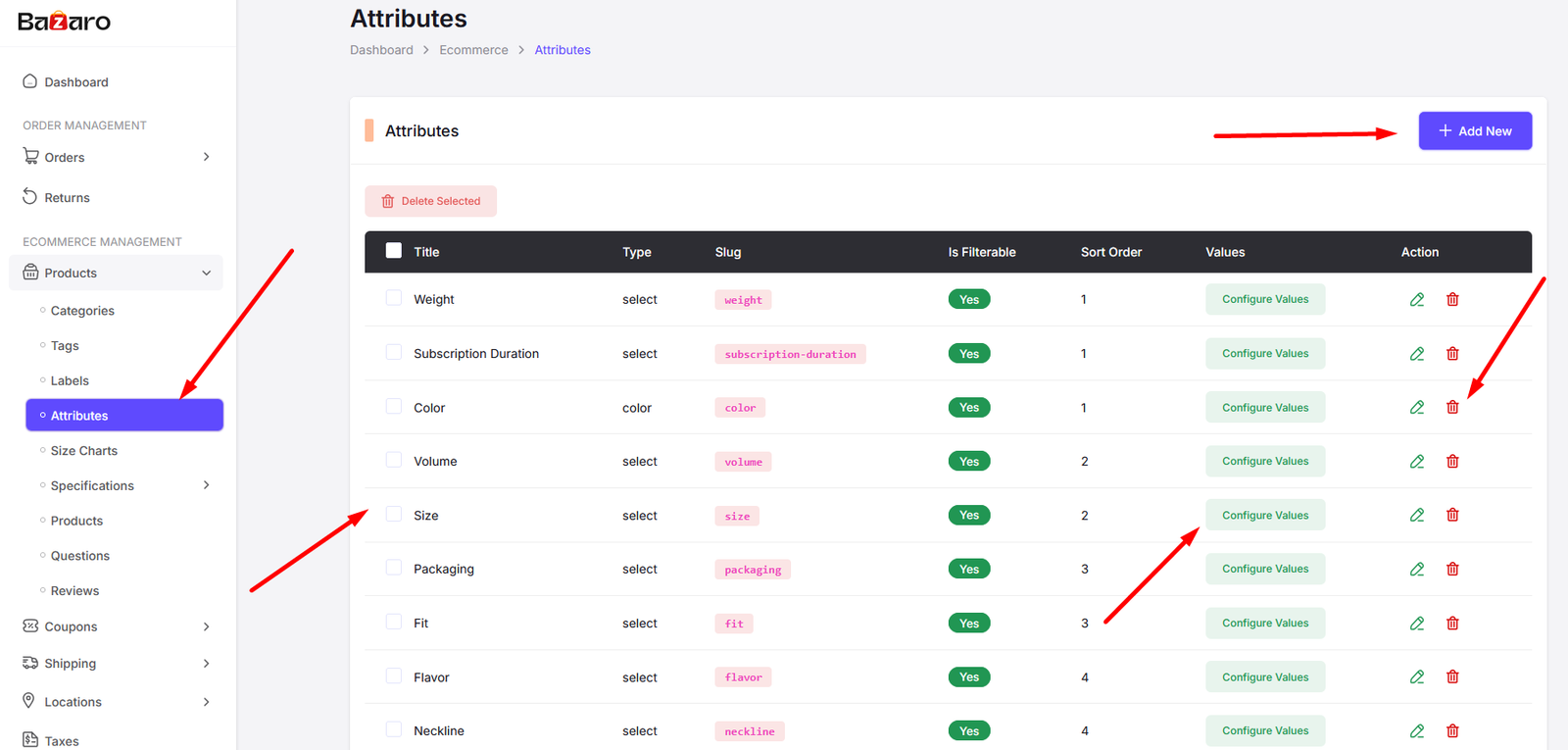
Here you can find all the attributes. Click on "Add New" button to add a new attribute. Also click on the "Edit" button to edit an existing attribute. Click on the "Delete" button to delete an attribute. Also you can select multiple attributes to delete at once.

Add new attribute page
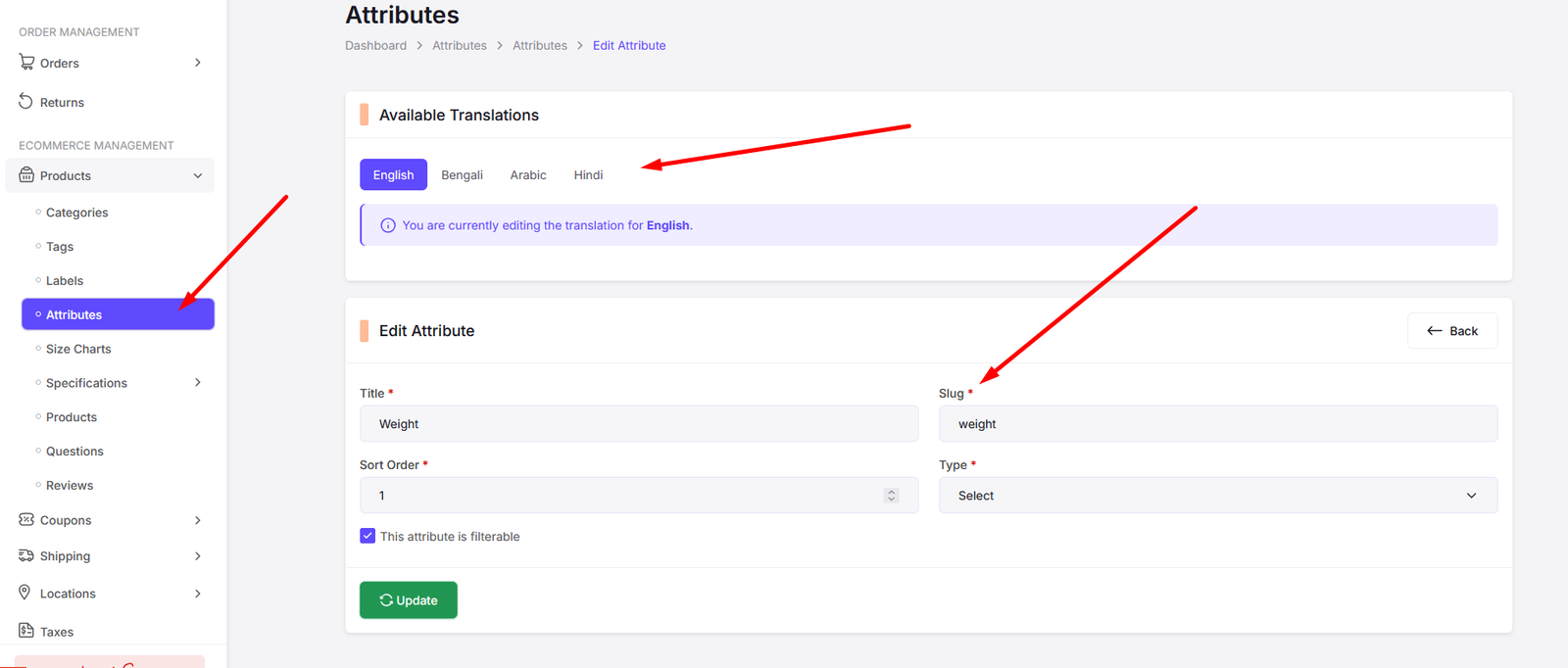
Edit attribute page
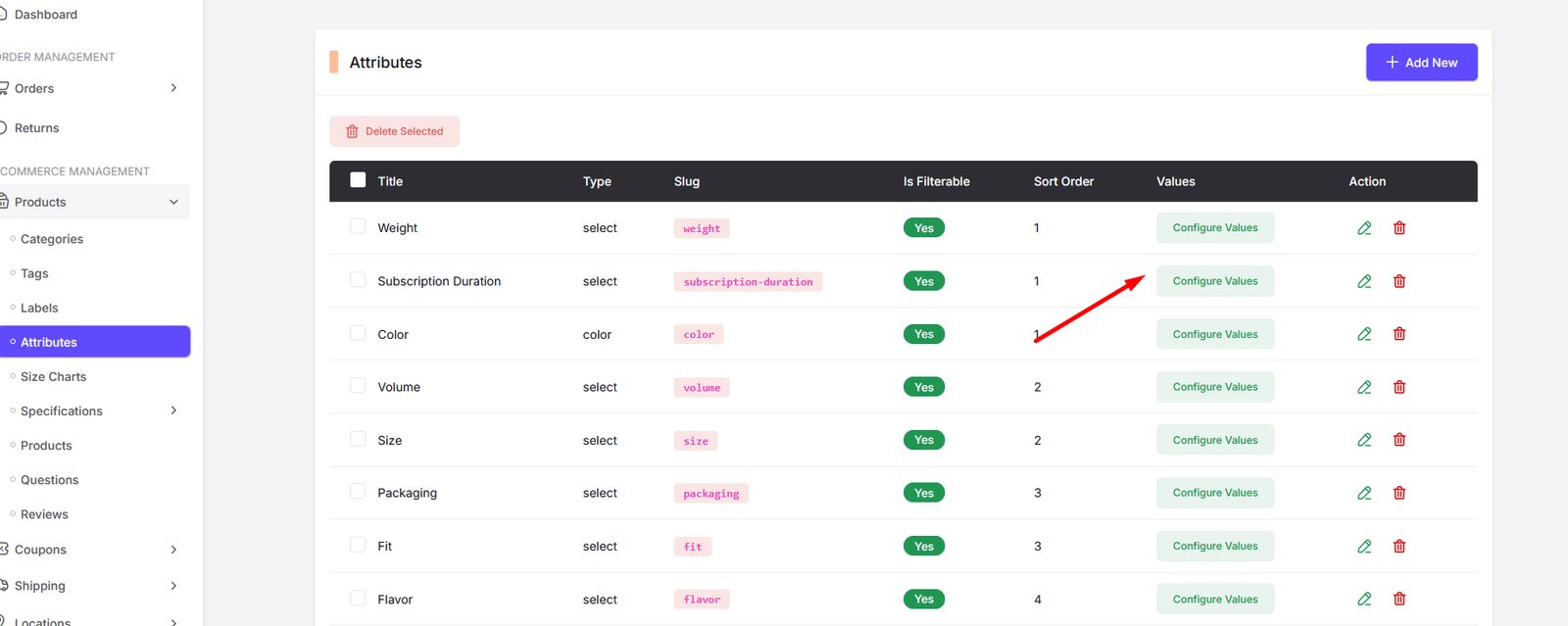
Click on "Configure Values" button to add values to the attribute. For example, if the attribute is "Color", you can add values like "Red", "Blue", "Green", etc.
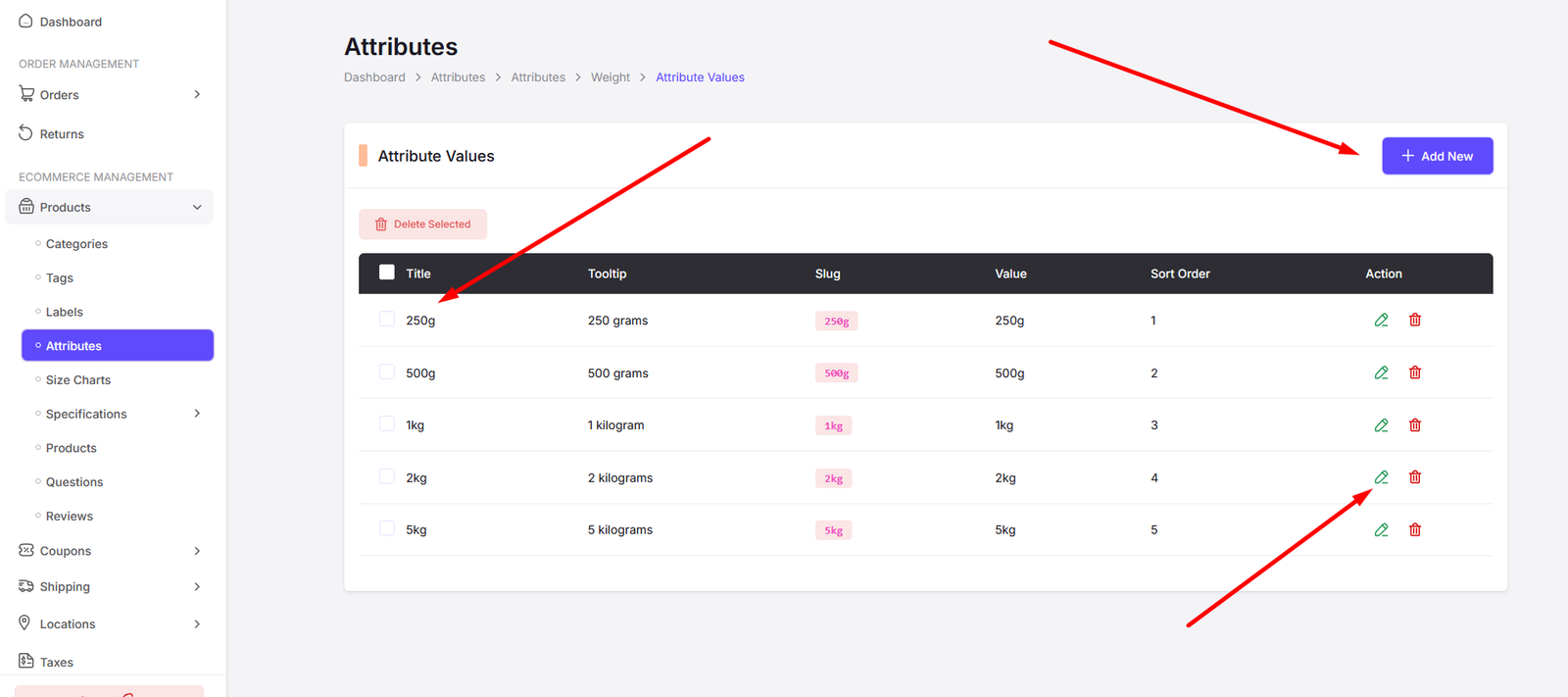
Here you can find all the attribute values. Click on "Add New" button to add a new attribute value. Also click on the "Edit" button to edit an existing attribute value. Click on the "Delete" button to delete an attribute value. Also you can select multiple attribute values to delete at once.
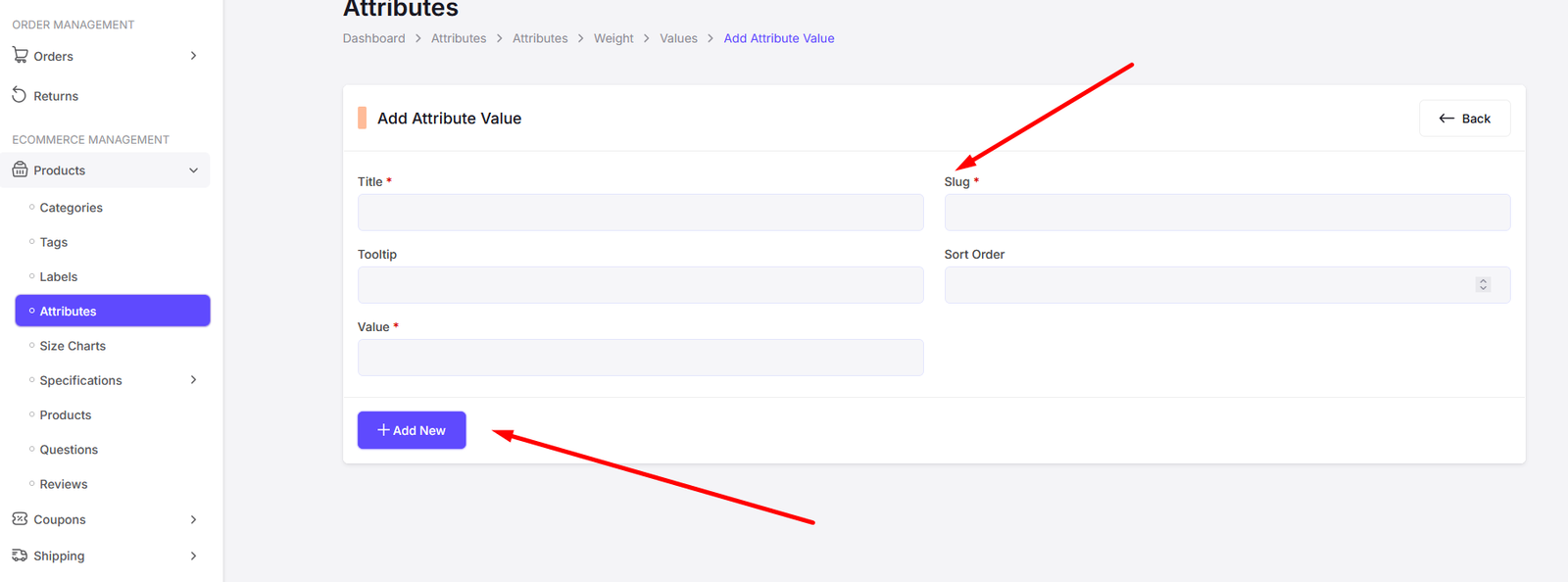
Add new attribute value page
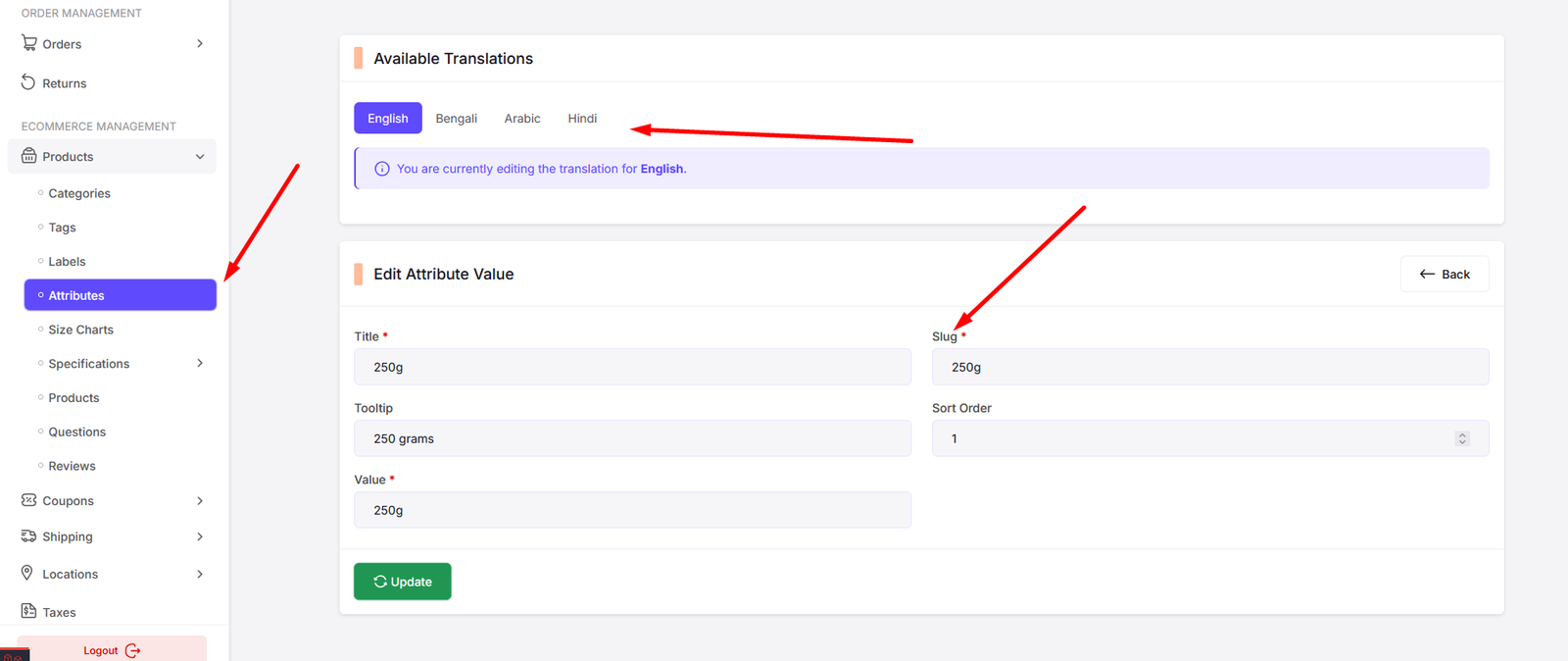
Edit attribute value page
Size Charts
Add products size charts from here. You can add size charts for different products and categories. This will help your customers to choose the right size for their products.

Here you can find all the size charts. Click on "Add New" button to add a new size chart. Also click on the "Edit" button to edit an existing size chart. Click on the "Delete" button to delete a size chart. Also you can select multiple size charts to delete at once.
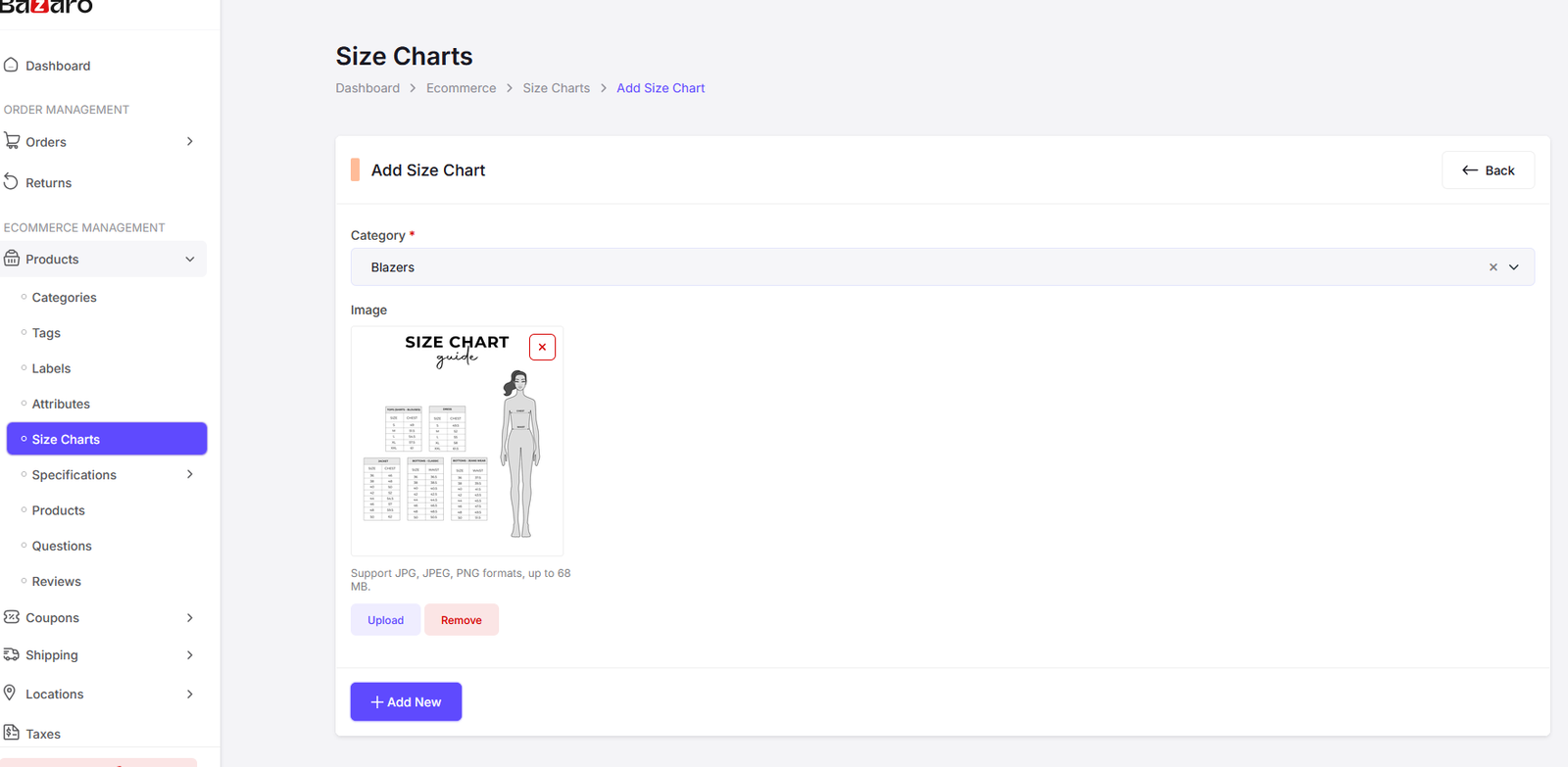
Add new size chart page

Edit size chart page
Specifications
Add products specifications from here. You can add specifications for different products and categories. This will help your customers to understand the product details better.

Here you can find all the specifications. Click on "Add New" button to add a new specification. Also click on the "Edit" button to edit an existing specification. Click on the "Delete" button to delete a specification. Also you can select multiple specifications to delete at once.

Add new specification page
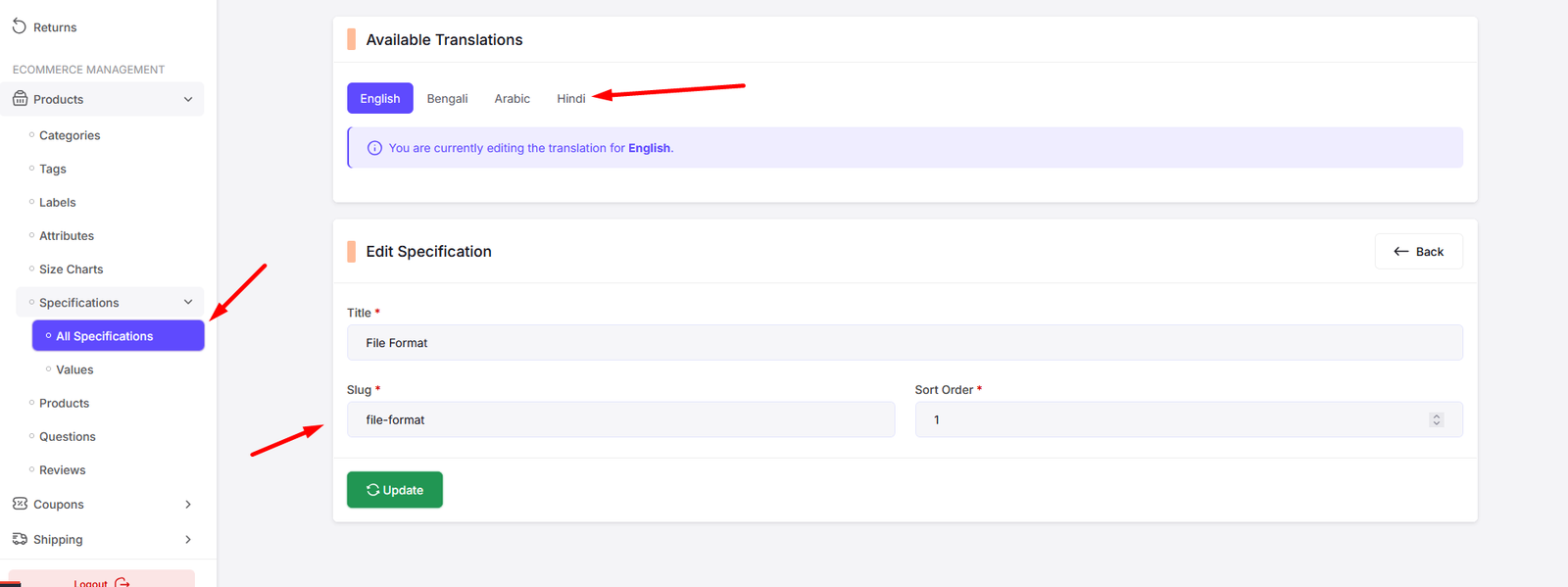
Edit specification page
Specification Value
Add products specification values from here. You can add specification values for different products and categories. This will help your customers to understand the product details better.

Here you can find all the specification values. Click on "Add New" button to add a new specification value. Also click on the "Edit" button to edit an existing specification value. Click on the "Delete" button to delete a specification value. Also you can select multiple specification values to delete at once.

Add new specification value page
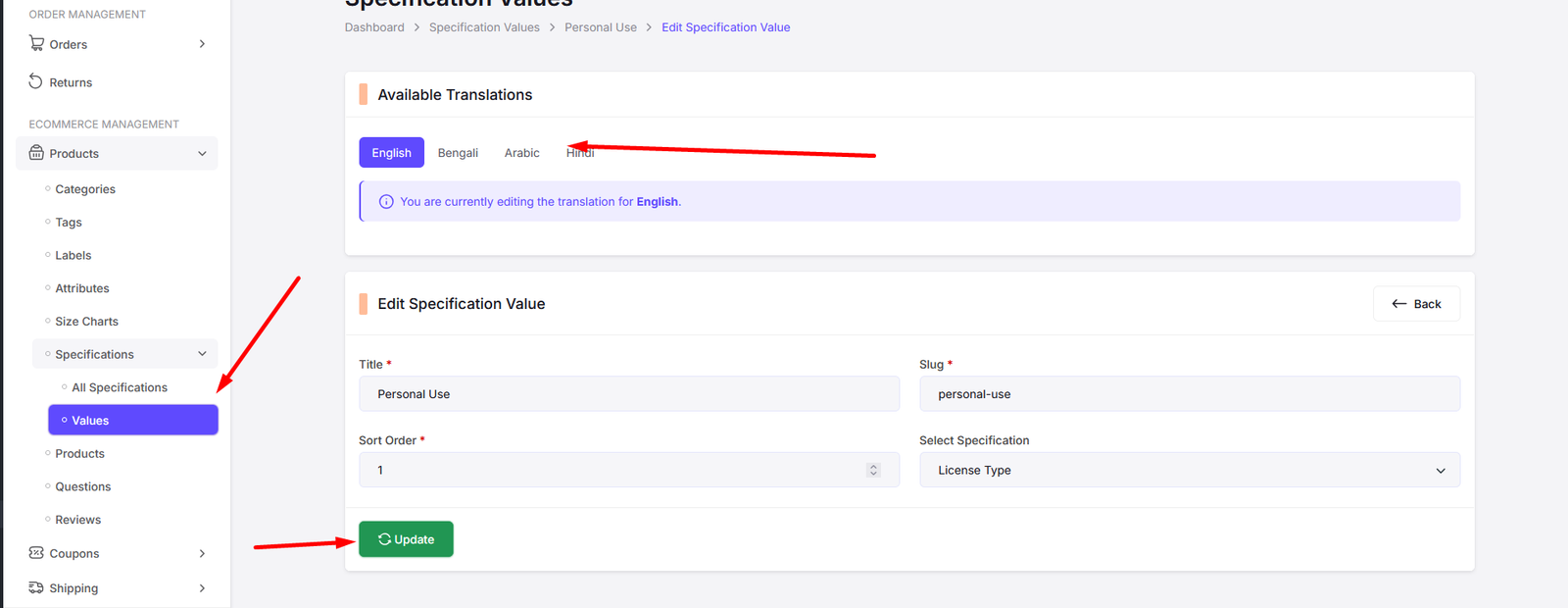
Edit specification value page
Questions
Customers can ask questions about products, and you can manage these questions from the admin panel. You can view, answer, and delete questions as needed.

Here you can find all the questions from customers. Click on "View" button to view the question and answer it. Click on the "Delete" button to delete a question. Also you can select multiple questions to delete at once.

View question page. Here you can view the question and answer it. You can also update status.
Reviews
Customers can leave reviews for products, and you can manage these reviews from the admin panel. You can view, approve, and delete reviews as needed.

Here you can find all the reviews from customers. Click on "View" button to view the review and respond if necessary. Click on the "Delete" button to delete a review. Also you can select multiple reviews to delete at once.

View Review page. Here you can view the review and update the status of the review. You can approve or disapprove the review based on its content.
Coupons
Here you can manage the coupons associated with your products, including adding, removing, and organizing product coupons.
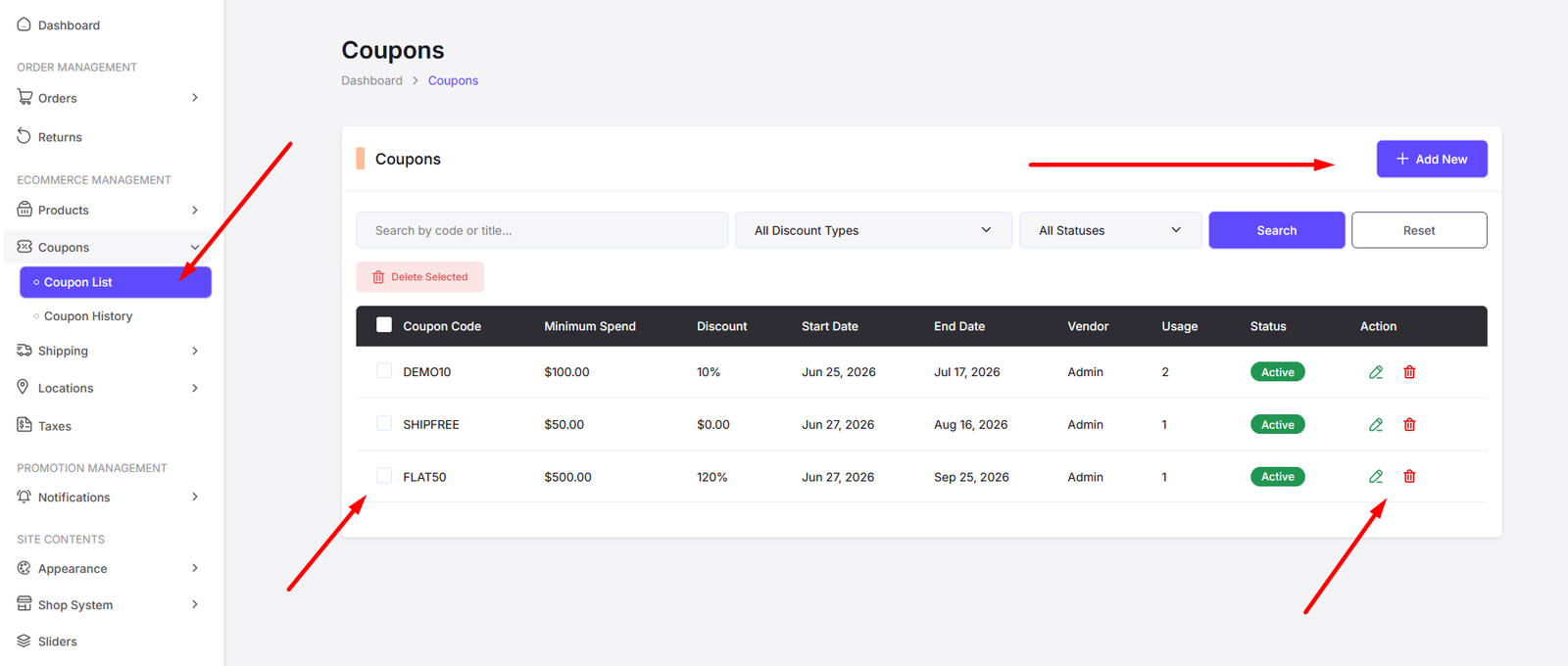
Here you can find all the coupons in your product. Click on "Add New" button to add a new coupon. Also click on the "Edit" button to edit an existing coupon. Click on the "Delete" button to delete a coupon. Also you can select multiple coupons to delete at once.

Add Coupon page. Here you can set the coupon code, description, discount type (percentage or fixed amount), discount value, usage limit, and expiration date for the coupon. Also include and exclude product for the coupon. You can also set the minimum and maximum spend amount for the coupon. Additionally you can set allow free shipping or allow on sales products options for the coupon.

Edit Coupon page.
Coupon Usage
Here you can track the usage of coupons in your products, including viewing how many times a coupon has been used and by which customers.

Here you can find all the coupon usage in your product. Click on the "Delete" button to delete a coupon usage record. Also you can select multiple coupon usage records to delete at once.
Taxes
Manage the taxes applicable to your products. You can add, edit, and delete tax rates as needed.

Here you can find all the tax rates in your E-commerce platform. Click on "Add New" button to add a new tax rate. Also click on the "Edit" button to edit an existing tax rate. Click on the "Delete" button to delete a tax rate. Also you can select multiple tax rates to delete at once.

Add Tax Page

Edit Tax Page