

Notifications
Manage and customize the notifications for your E-commerce platform.
Sale Notifications
Navigate to the "Sale Notifications" to manage sale notifications.

Here you can configure your sale notifications. Select Products to include in the sale notifications. Also you can click on the "Delete" button to remove a notification product. Also you can select multiple products to delete at once.
Popup Notifications
Navigate to the "Popup Notifications" to manage popup notifications.

Here you can find all the popup notifications. Click on "Add New" button to add a new popup notification. Also click on the "Edit" button to edit an existing popup notification. Click on the "Delete" button to delete a popup notification.
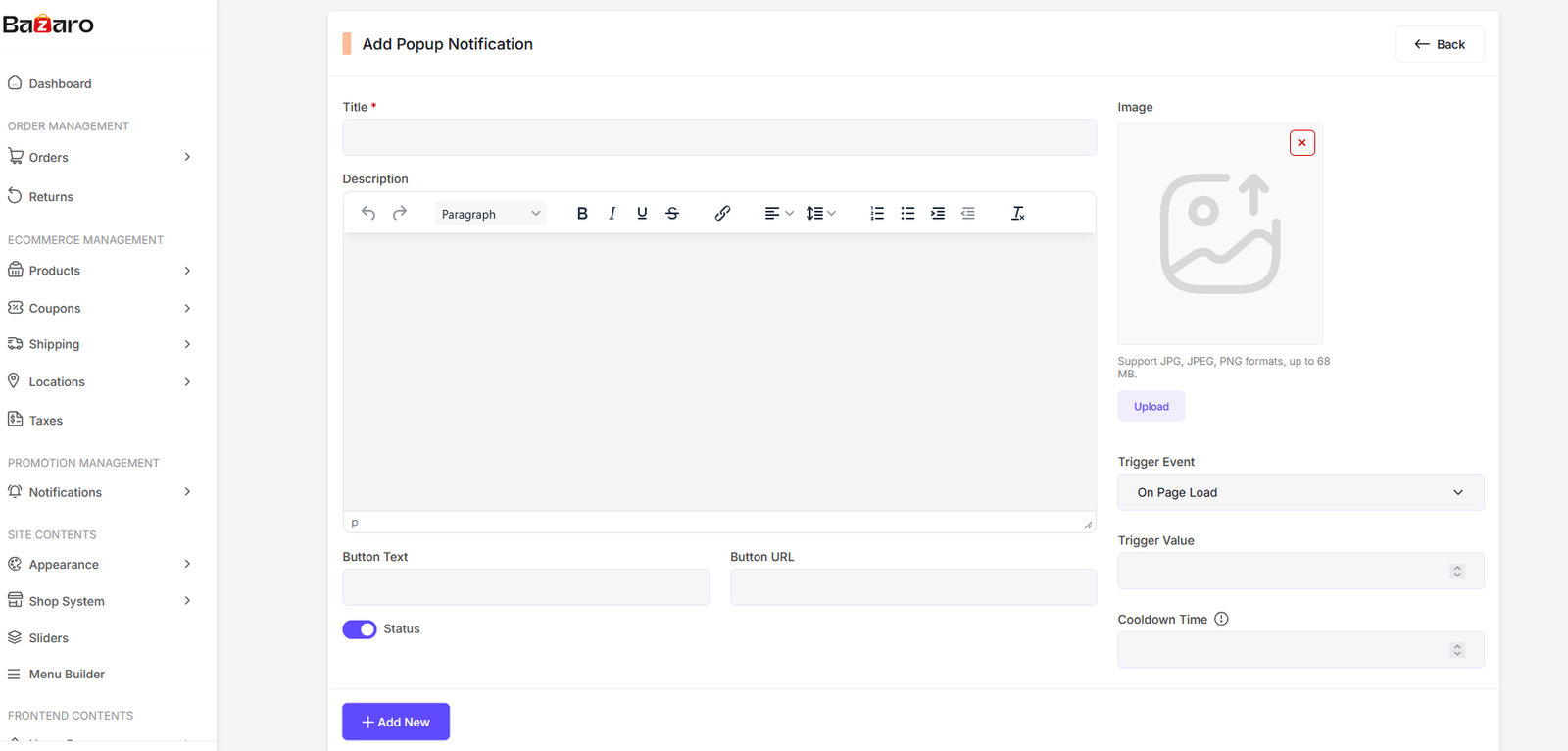
Add New Popup Notification

Update Popup Notification
Header Notifications
Navigate to the "Header Notifications" to manage header notifications.

Here you can find all the header notifications. Click on "Add New" button to add a new header notification. Also click on the "Edit" button to edit an existing header notification. Click on the "Delete" button to delete a header notification.

Add New Header Notification

Update Header Notification