
Site Contents
Manage the content of your E-commerce platform, including blogs, socials, FAQs, Features, Brands and more.
Blogs Contents
Navigate to the "Manage Blogs" section in the admin dashboard to access the blog posts. Here you can manage the content of the blog posts such as adding, editing, or deleting posts.

Here you can find all the blog posts. Click on "Delete" button to delete the blog post. Also you can select multiple blogs to delete at once.
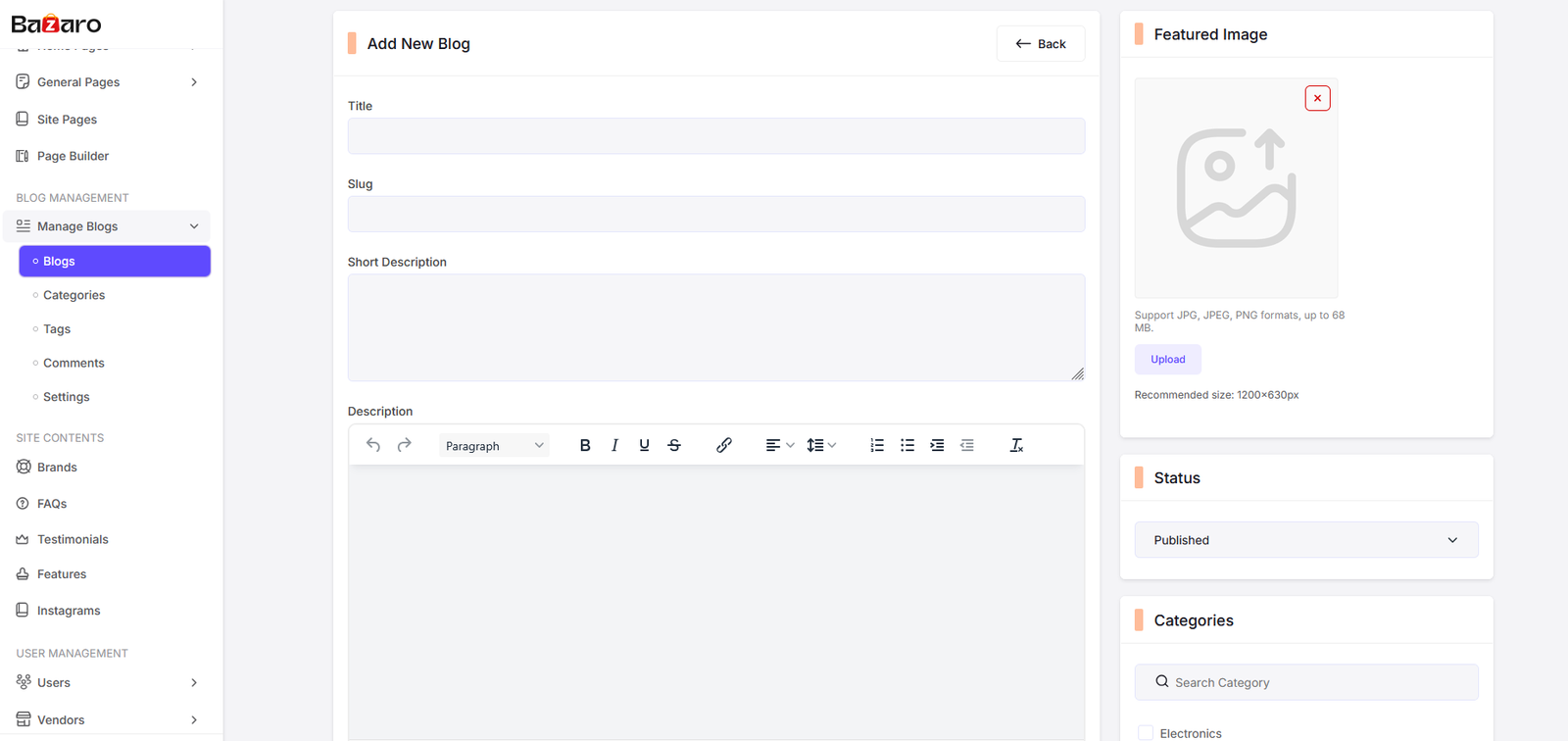
Click on "Add" button to add a new blog post.

Click on "Edit" button to edit the blog post.
Blogs Categories
You can manage the categories of your blog posts here. This includes adding new categories, editing existing ones, and deleting categories that are no longer needed.

Here you can find all blog categories. Click on "Delete" button to delete the blog category. Also Click on "Status Switch" to toggle the status of the blog category. Also you can select multiple categories to delete at once.

Click on "Add" button to add a new blog category.

Click on "Edit" button to edit the blog category.Also you can select multiple categories to delete at once.
Blogs Tags
You can manage the tags of your blog posts here. This includes adding new tags, editing existing ones, and deleting tags that are no longer needed.

Here you can find all blog tags. Click on "Delete" button to delete the blog tag. Also Click on "Status Switch" to toggle the status of the blog tag. Also you can select multiple tags to delete at once.

Click on "Add" button to add a new blog tag.

Click on "Edit" button to edit the blog tag.
Blogs Comments
You can manage the comments of your blog posts here. This includes approving new comments, editing existing ones, and deleting comments that are no longer needed.

Here you can find all blog comments. Click on "View" button to view the comment. Also you can delete comments by clicking on the "Delete" button.
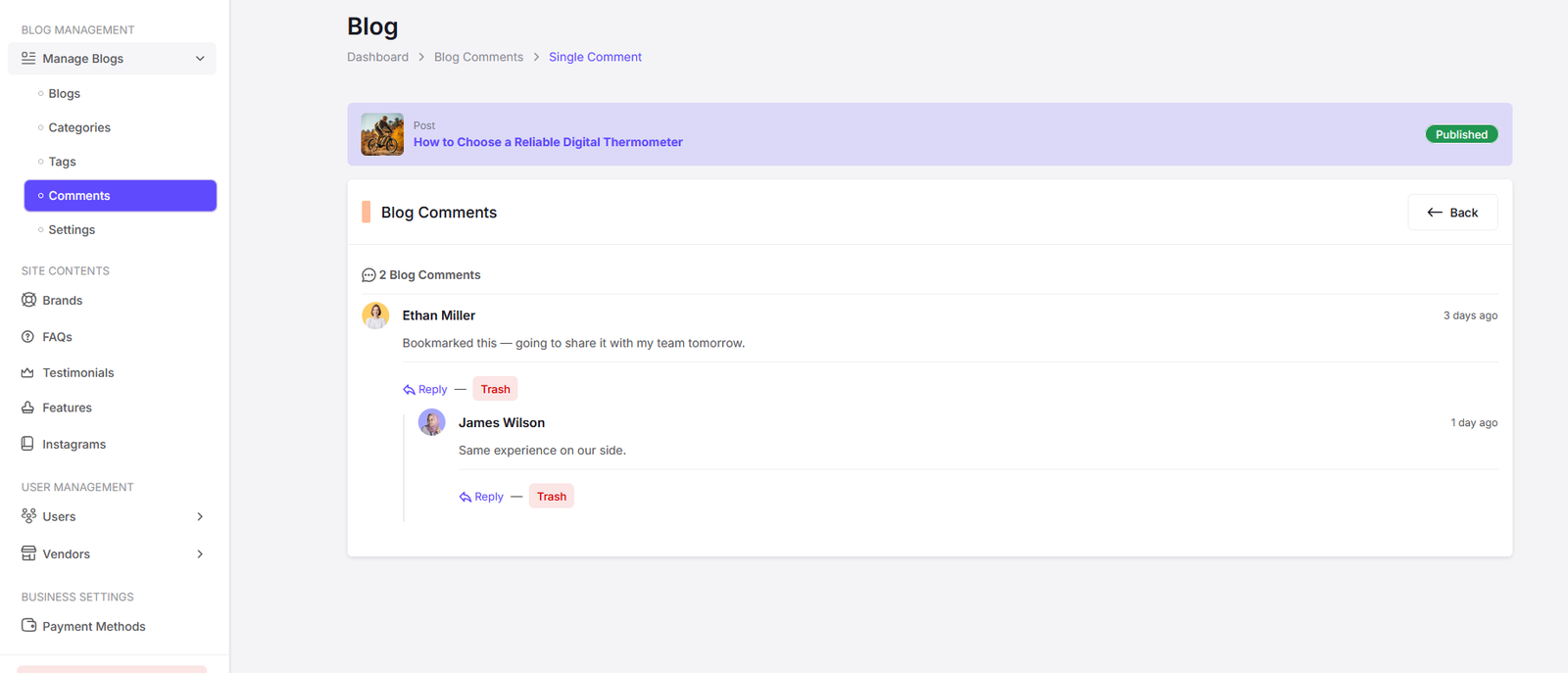
You can reply to comments by clicking on the "Reply" button. Also click on the "Trash" button to delete comment.
Blog Settings
You can manage the settings of your blog posts here. This includes configuring the comment auto approve, pagination or blog page layout.

You can configure various settings for your blog posts here.
Socials
You can manage the settings of your social links of the platform here.

Here you can find all the social links. Click on "Add New" button to add a new social link. Also click on the "Edit" button to edit an existing social link. Click on the "Delete" button to delete a social link.
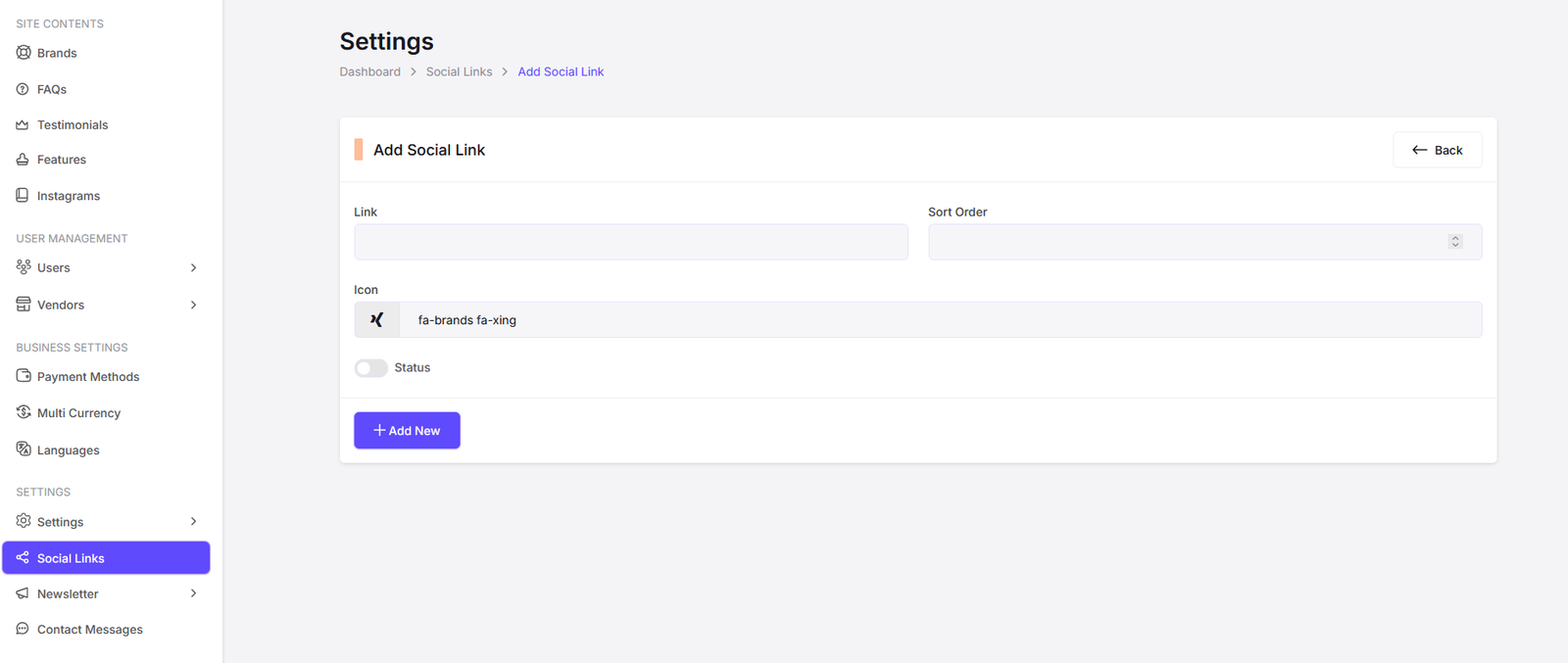
Add Social Link Page.

Edit Social Link Page.
FAQs
You can manage the frequently asked questions (FAQs) of your platform here.

Here you can find all the FAQs. Click on "Add New" button to add a new FAQ. Also click on the "Edit" button to edit an existing FAQ. Click on the "Delete" button to delete a FAQ.

Add FAQ Page

Edit FAQ Page
Features
You can manage the features of your platform here.

Here you can find all the features. Click on "Add New" button to add a new feature. Also click on the "Edit" button to edit an existing feature. Click on the "Delete" button to delete a feature.

Add Feature Page
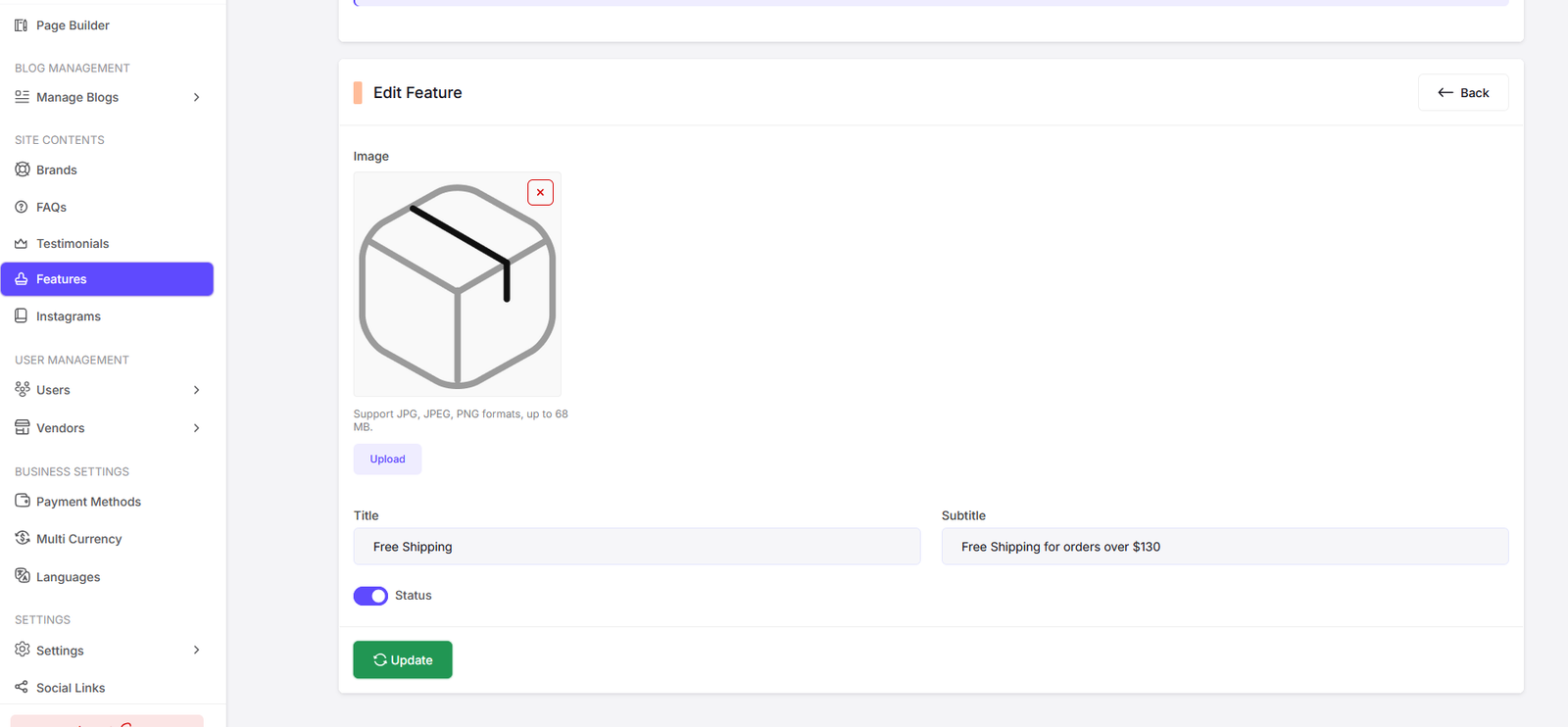
Edit Feature Page
Brands
You can manage the brands of your platform here.

Here you can find all the brands. Click on "Add New" button to add a new brand. Also click on the "Edit" button to edit an existing brand. Click on the "Delete" button to delete a brand.

Add Brand Page

Edit Brand Page
You can manage the Instagram of your platform here.

Here you can find all the Instagram posts. Click on "Add New" button to add a new post. Also click on the "Edit" button to edit an existing post. Click on the "Delete" button to delete a post.

Add Instagram Post Page

Edit Instagram Post Page
Testimonials
You can manage the testimonials of your platform here.
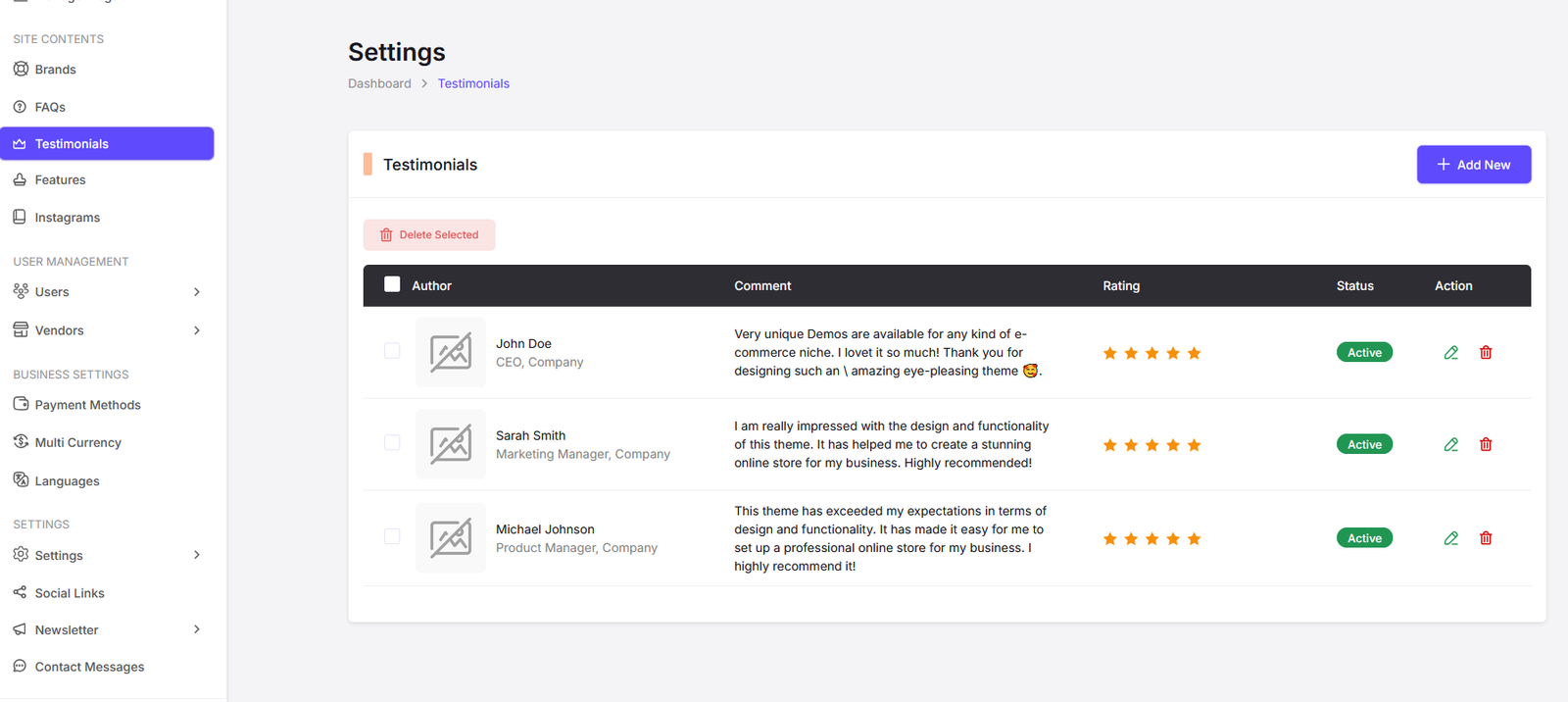
Here you can find all the testimonials. Click on "Add New" button to add a new testimonial. Also click on the "Edit" button to edit an existing testimonial. Click on the "Delete" button to delete a testimonial.

Add Testimonial Page

Edit Testimonial Page
Sliders
You can manage the sliders of your platform here.
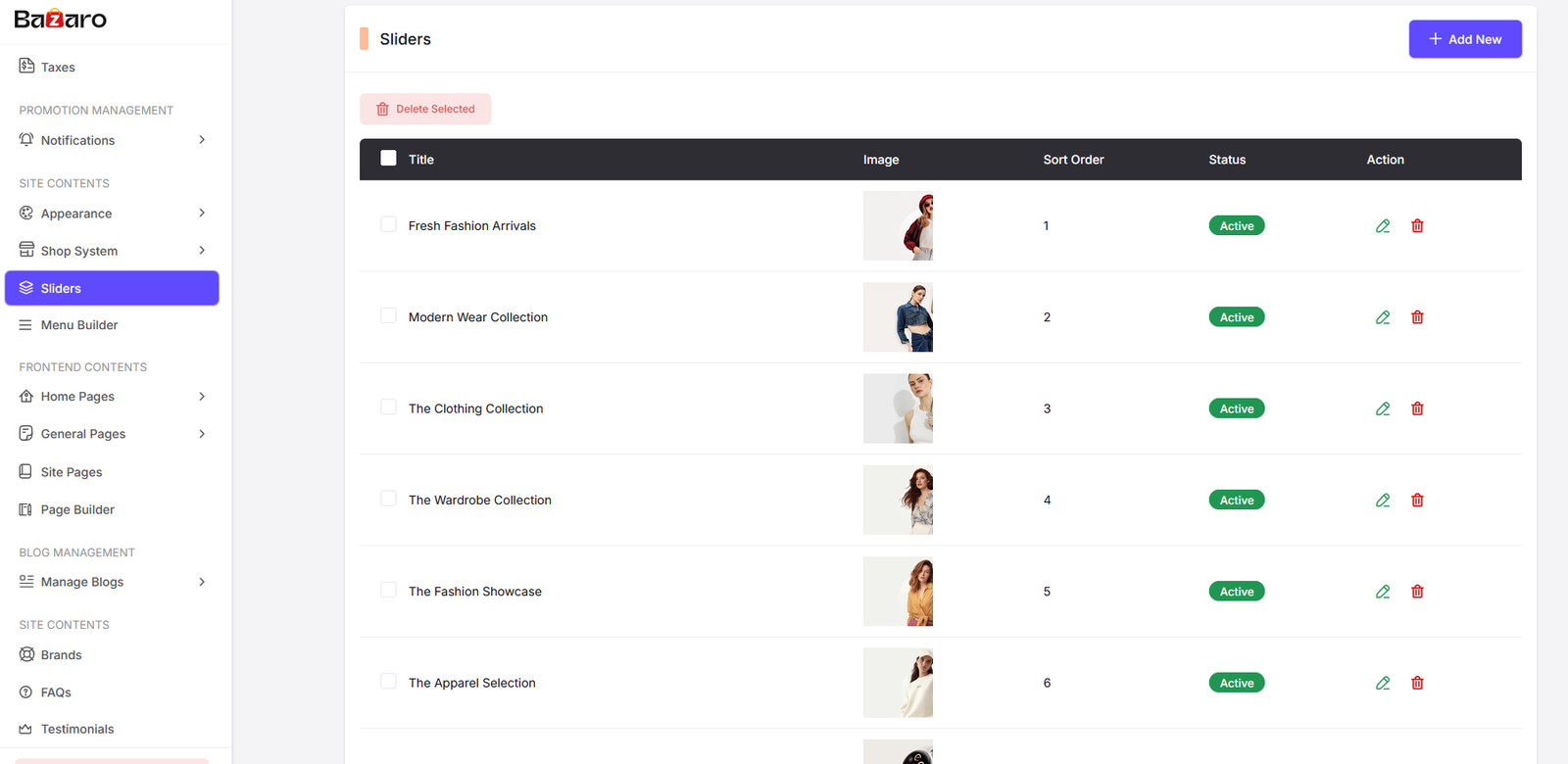
Here you can find all the sliders. Click on "Add New" button to add a new slider. Also click on the "Edit" button to edit an existing slider. Click on the "Delete" button to delete a slider.

Add Slider Page

Edit Slider Page
Newsletters
You can manage the newsletters of your platform here.

Here you can find all subscriber list. You can delete unverified subscribers as needed.

You can send bulk emails to your subscribers from here.

Manage your subscribe popup configuration from here.
Contact Messages
You can manage the contact messages of your platform here.

Here you can find all the contact messages. Click on "View" button to view the message. Also you can delete messages by clicking on the "Delete" button. Also you can set contact message receiver email from here.

View Contact Message Page. Here you can view the details of a contact message