

Frontend
Customize the look and feel of your E-commerce platform's frontend.
Menu Builder
After clicking the edit button you will see the menu builder page. Here you can add, edit, and delete menu items. You can also change the order of the menu items by dragging and dropping them.
Menu items can be translated into different languages. You can change the language by clicking the language switcher in the top "Available Translations" Section.

Menu Builder interface in the admin dashboard.
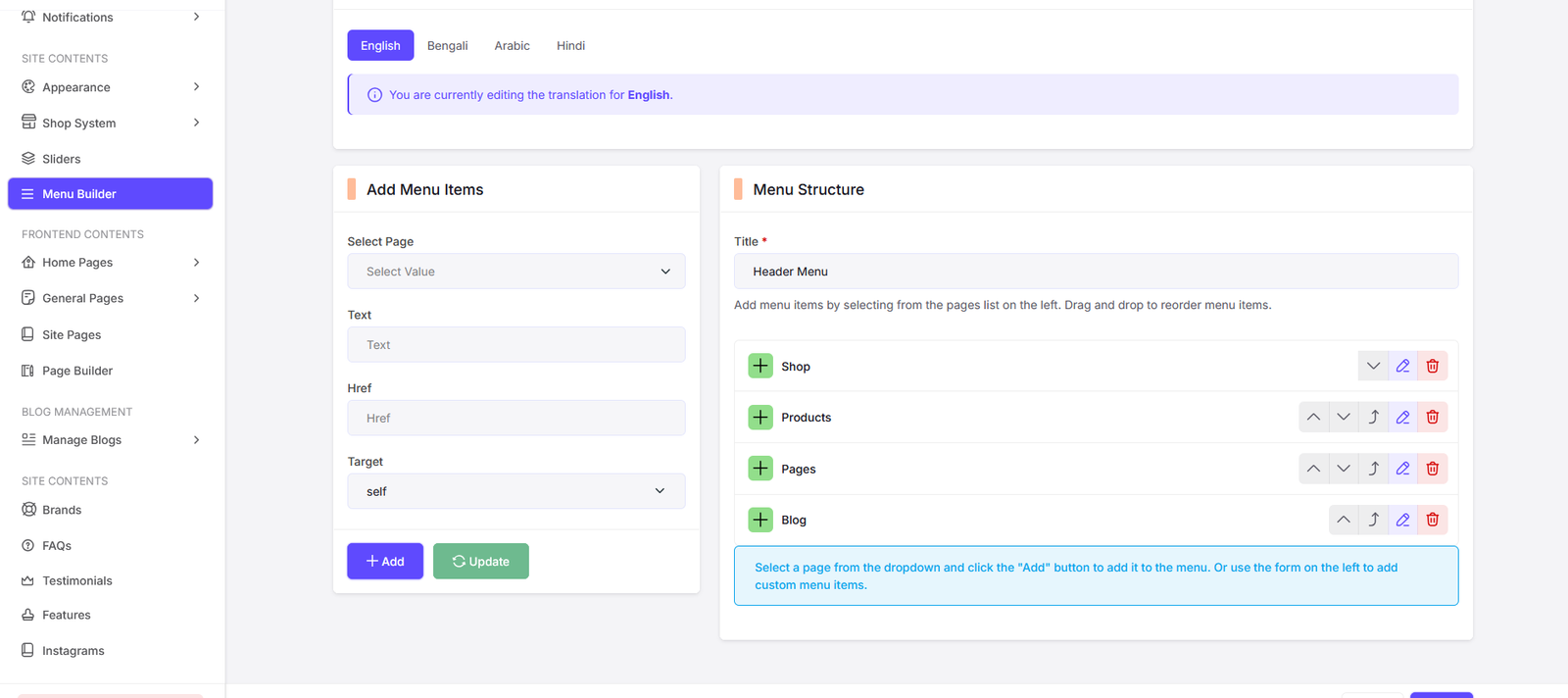
Add Pre-loaded menu items to your menu. You can also add custom pages if you want.
There are some action buttons available for each menu item:
| Button | Action |
|---|---|
| Up | Moves the menu item up in the list |
| Down | Moves the menu item down in the list |
| Inside | Moves the menu item inside the parent menu item (creates sub-menu) |
| Outside | Moves the menu item outside the parent menu item |
| Edit | Opens the edit modal to change name, URL, and icon |
| Delete | Deletes the menu item from the list |
Page Builder
Navigate to the "Pages" section in the admin dashboard to access the page builder. Here you can create, edit, view, or disable pages for your E-commerce platform.
You can create custom pages using the page builder. Just click on the Add New button and you will see the page builder interface. You can add sections, blocks, and elements to your page. You can also edit, view, or disable any page from here.

All Pages List.

Add New Page interface in the admin dashboard.

Edit Page interface in the admin dashboard.
Site Pages
Navigate to the "Site Pages" section in the admin dashboard to access the site pages. Here you can view, edit, or disable any page for your E-commerce platform. You can also manage Layout, SEO settings, and other page-specific configurations.

All Pages List. Click on "Edit" button to edit the page. Toggle the "Status" switch to enable or disable the page.

Choose Header & Footer Style for the page. Also you can manage SEO settings such as Meta Title, Meta Description, Meta Keywords and Meta Image for the page.
General Pages
Navigate to the "General Pages" section in the admin dashboard to access the general pages. Here you can manage the content of the general pages such as About Us, Contact Us. Click on the page you want to edit and you will see the sections of the page.

Here is a list of sections available in the page. Click on "Edit" button to edit the section.

Here you can manage the content of the page. Click on "Status" switch to enable or disable the section.
Home Pages
Navigate to the "Home Pages" section in the admin dashboard to access the home pages. Here you can manage the content of the home pages. Select a home page to edit and you will see the sections of the page.

Here is a list of sections available in the page. Click on "Edit" button to edit the section.

Here you can manage the content of the page. Click on "Status" switch to enable or disable the section.