

Product Management
Learn how to manage products in your eCommerce platform, including adding, editing, and organizing product listings.
Create Product
Here you can add new products to your eCommerce platform, including setting up product details, pricing, and inventory.

You can add 4 different types of products in your eCommerce platform: Simple, Variable, Digital, and External/Affiliate products. Each product type has its own set of options and configurations.

Add basic informations of products like name, description, price, and SKU. You can also set the product's visibility, inventory. Additionally, you can assign categories, tags, taxes, labels to the product for better organization and searchability. You can add product image, seo content, shipping details and some miscellaneous options like show faq, is refundable, show countdown times, show size chart, add FAQs, related products.
Product Gallery
Here you can manage the images and media associated with your products, including adding, removing, and organizing product images.

Here you can find all the images in your product gallery. Click on "Add New" button to add a new image. Also click on the "Edit" button to edit an existing image. Click on the "Delete" button to delete an image. Also you can select multiple images to delete at once.

Add new image
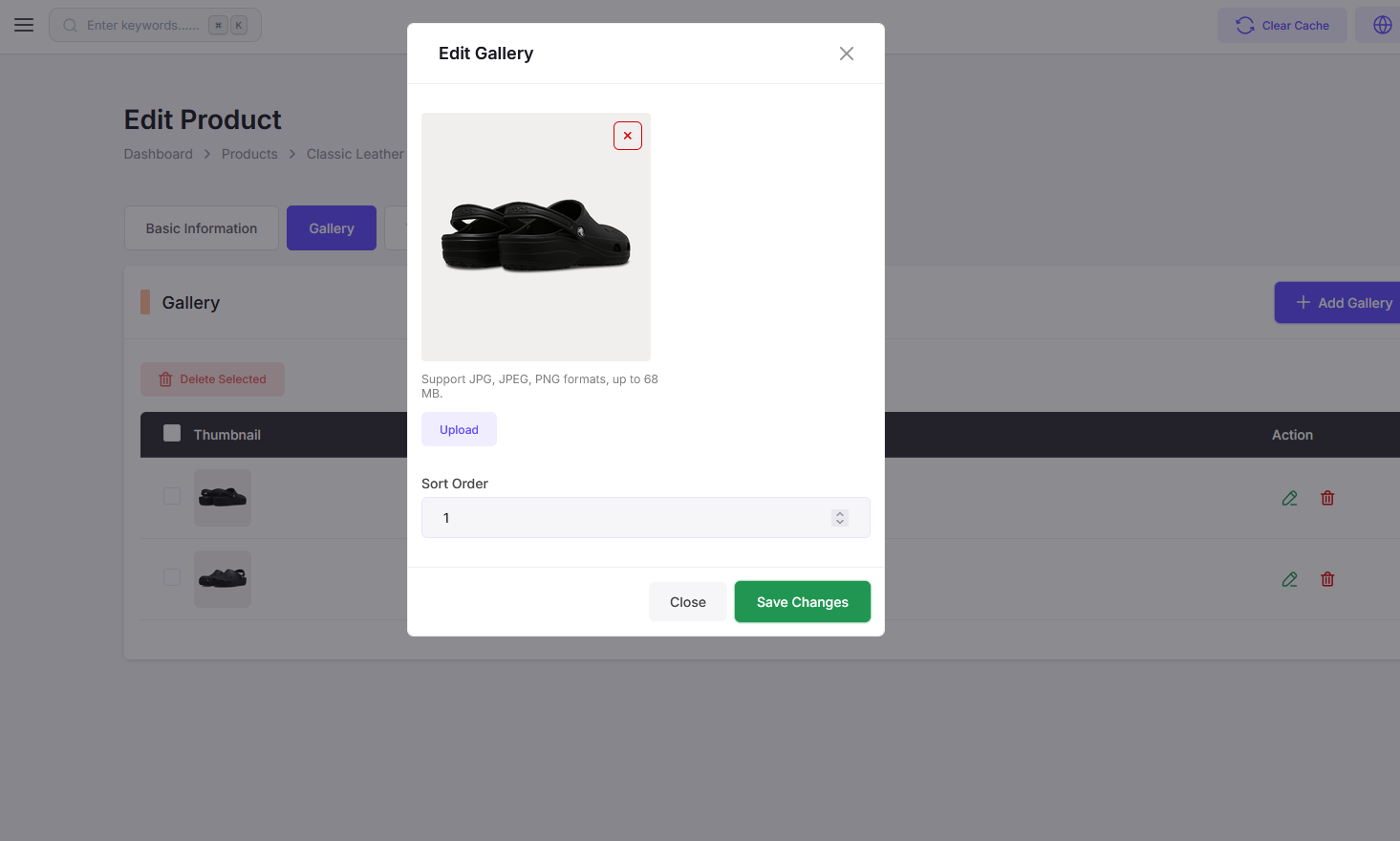
Edit image
Video
Here you can manage the videos associated with your products, including adding, removing, and organizing product videos.

Here you can find all the videos in your product. Click on "Add New" button to add a new video. Also click on the "Edit" button to edit an existing video. Click on the "Delete" button to delete a video. Also you can select multiple videos to delete at once.

Add new video

Edit video
Files
Here you can manage the files associated with your products, including adding, removing, and organizing product files.

Here you can find all the files in your product. Click on "Add New" button to add a new file. Also click on the "Edit" button to edit an existing file. Click on the "Delete" button to delete a file. Also you can select multiple files to delete at once. File can be self hosted or external. For self hosted files, you can upload the file directly to your server. For external files, you can provide a URL to the file hosted on another server.
Note: You can only use files for digital products, and you can add multiple files for each digital product.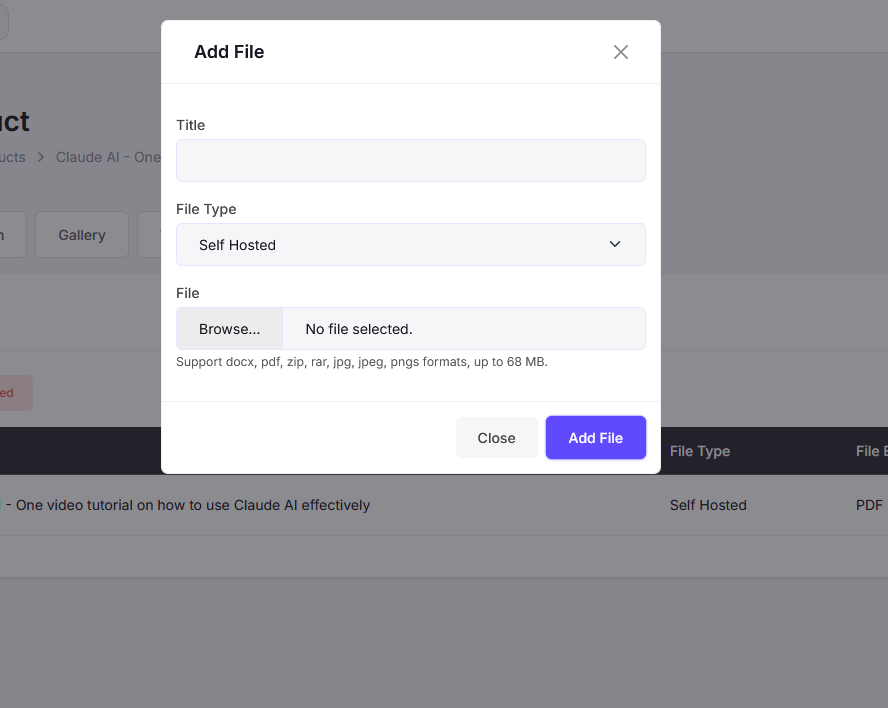
Add new file

Edit file
Attributes
Here you can manage the attributes associated with your products, including adding, removing, and organizing product attributes.
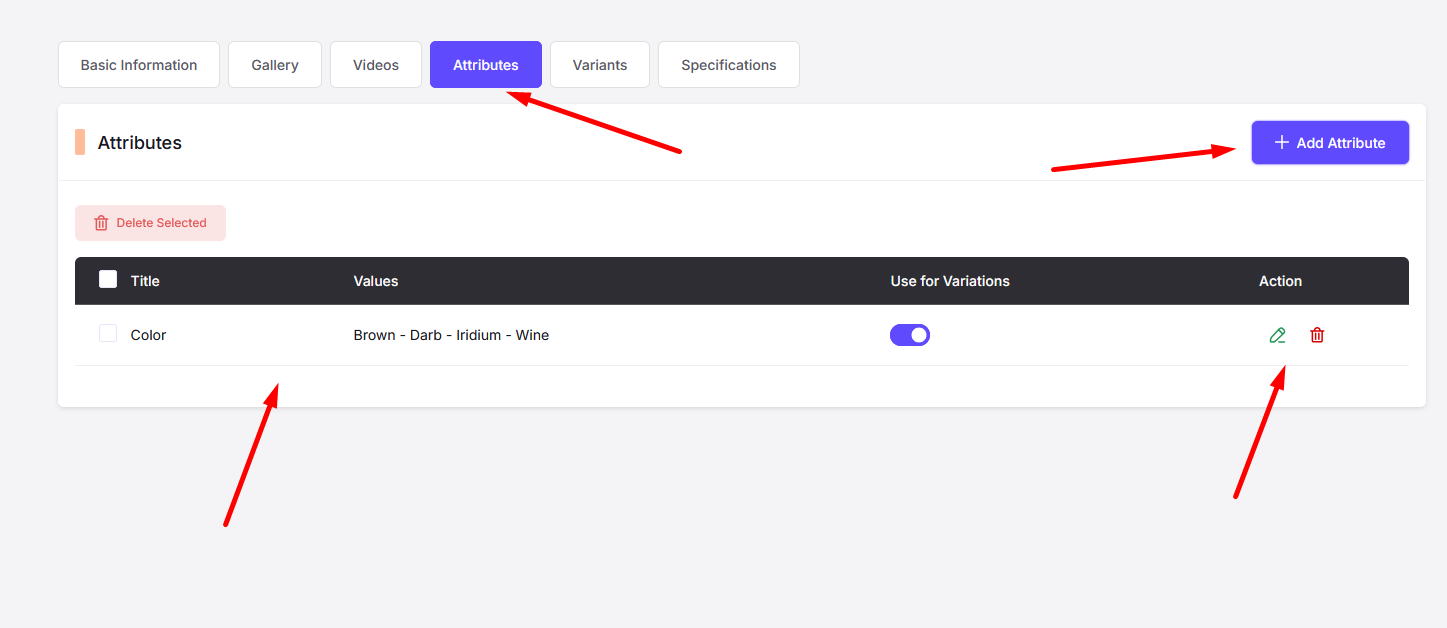
Here you can find all the attributes in your product. Click on "Add New" button to add a new attribute. Also click on the "Edit" button to edit an existing attribute. Click on the "Delete" button to delete an attribute. Also you can select multiple attributes to delete at once. Toggle the "Use for Variation" option to enable or disable the attribute for product variations. Note: You can only use attributes for variations if the product type is set to "Variable".
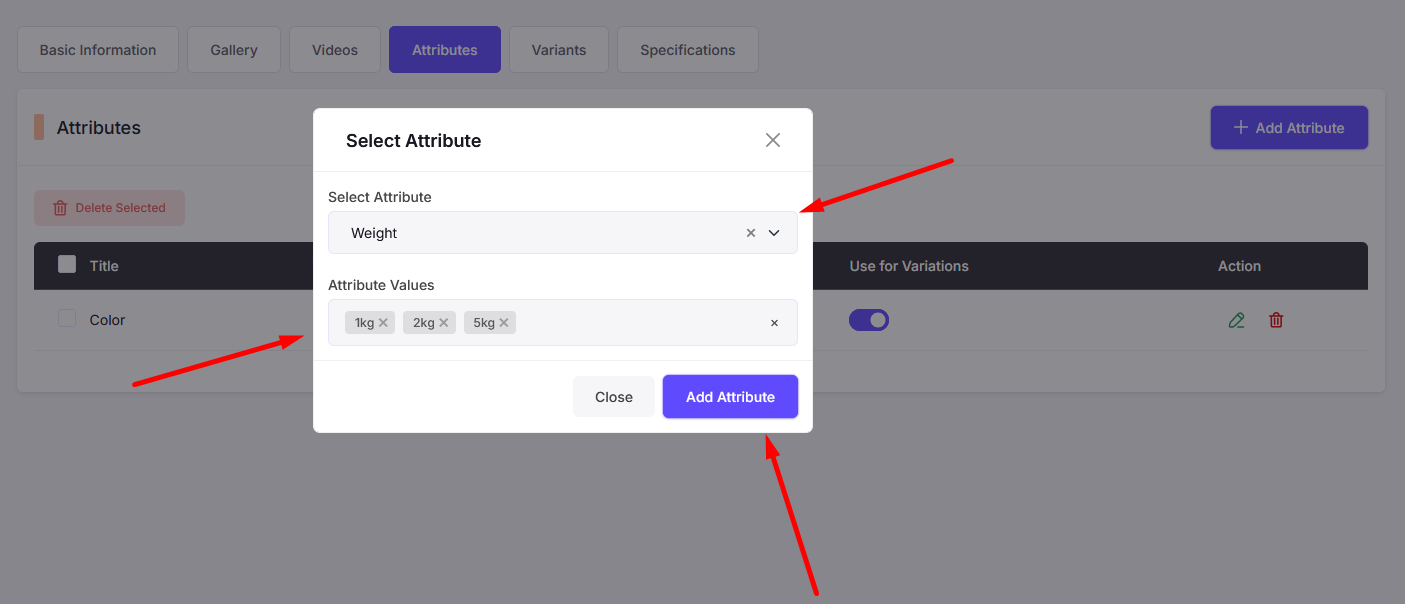
Add new attribute

Edit attribute
Variants
Here you can manage the variants associated with your products, including adding, removing, and organizing product variants.
Here you can find all the variants in your product. Click on "Add New" button to add a new variant. Also click on the "Edit" button to edit an existing variant. Click on the "Delete" button to delete a variant. Also you can select multiple variants to delete at once. Click on "Generate Variations" button to automatically generate variants based on the attributes you have set for the product. Note: You can only generate variations if the product type is set to "Variable" and you have at least one attribute with the "Use for Variation" option enabled. Variants can be Physical or Digital. Physical variants represent tangible products, while digital variants represent downloadable products.

Add files for digital variants. You can add multiple files for each digital variant, and customers will be able to download these files after purchasing the product.

Add variant page.

Edit variant page.
Specifications
Here you can manage the specifications associated with your products, including adding, removing, and organizing product specifications.

Here you can find all the specifications in your product. Click on "Add New" button to add a new specification. Also click on the "Edit" button to edit an existing specification. Click on the "Delete" button to delete a specification. Also you can select multiple specifications to delete at once.

Add Specification page.

Edit Specification page.